


MCP server
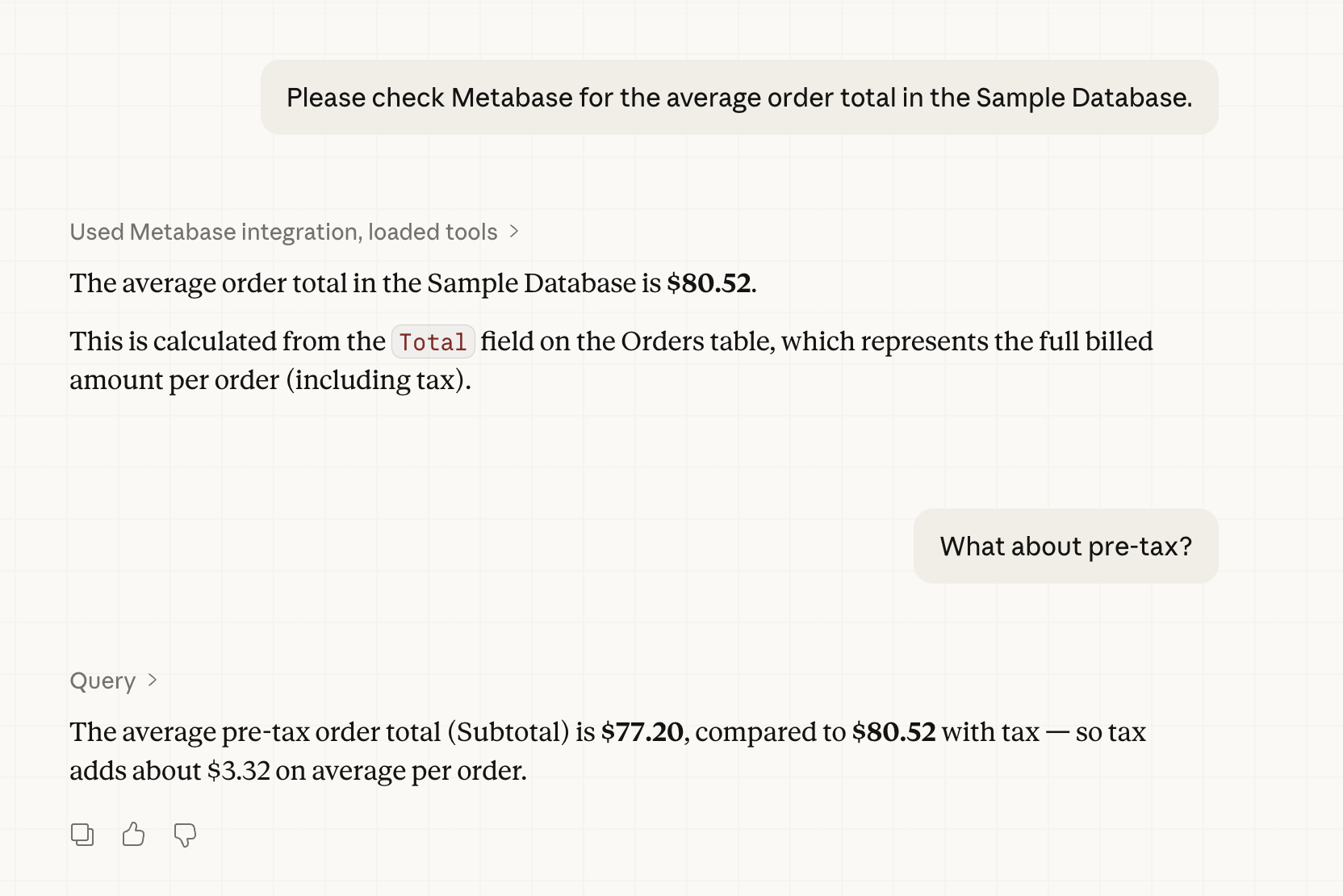
Metabase includes an MCP (Model Context Protocol) server that lets AI clients connect directly to your Metabase, all scoped to the connecting person’s permissions.
Connect a client to your Metabase MCP server’s URL
Your Metabase’s MCP server is served from the /api/metabase-mcp endpoint.
Once an admin has turned on the MCP server, point your MCP client at:
https://{your-metabase.example.com}/api/metabase-mcp
Replace {your-metabase.example.com} with your Metabase’s URL. Admins can also copy the URL from Admin > AI > MCP > Settings > MCP server URL.
Your client will direct you to an authentication page for your Metabase.
Once authenticated, you can approve or block the tools in your client (not in your Metabase).
Connected a client before Metabase 0.64? It’ll ask you to sign in again after you upgrade.
Connecting Claude Code to your Metabase’s MCP server
To connect Claude Code:
- Run a command to add the MCP server.
claude mcp add --transport http metabase https://{your-metabase-url}/api/metabase-mcp
Replace {your-metabase-url} with your Metabase address.
-
Start Claude Code with
claude. -
In Claude Code, run
/mcp. -
Select the Metabase MCP server.
-
Click Authenticate, and authenticate with your Metabase. (You may first need to Enable the Metabase MCP server).
If Claude asks you to choose authentication options, see Choose authentication options in Claude.
Once authenticated, ask your agent about your Metabase. You should see your agent use Metabase tools to interact with your Metabase.
See Claude Code MCP docs.
Connect via Claude web
If you use Claude on the web or Claude Desktop, go to Claude’s connector directory and enter your Metabase’s MCP URL.
One of your Metabase admins will still need to have turned on your Metabase’s MCP server. You’ll authenticate against your own Metabase during setup. If Claude asks you to choose authentication options, see Choose authentication options in Claude.
MCP tools
The MCP server gives your agent tools for searching, browsing, querying, and creating content in your Metabase. For the full list and the permission each one needs, see MCP server tools.
Using the MCP server
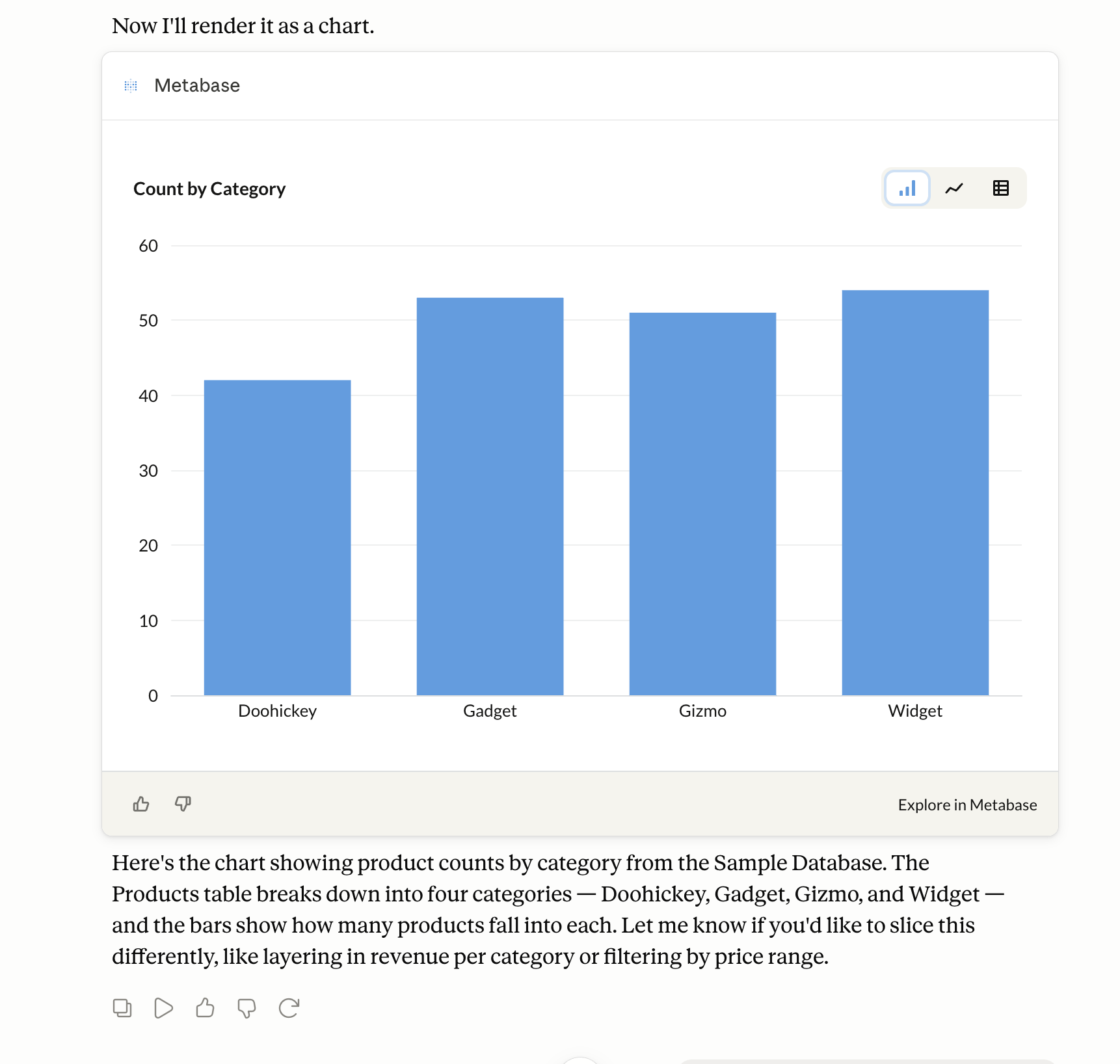
The MCP server will return results as either text or an inline chart, depending on the question you asked.
If you want the MCP server to return an inline chart, ask it to “show” or “visualize” the data:
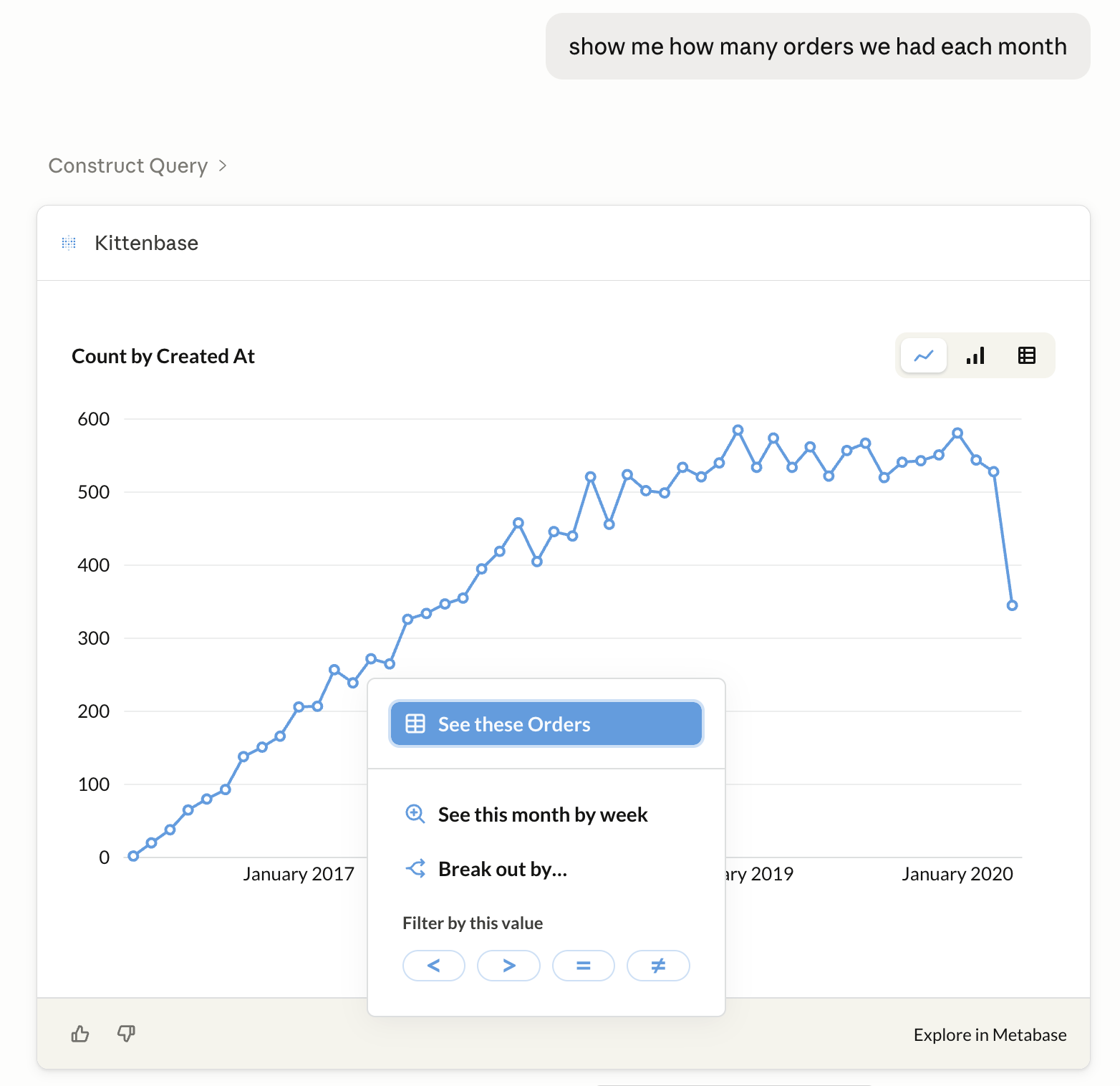
Metabase picks a chart type based on the shape of the result. You can switch between bar, line, and table (when the data fits), and if the chart has a date axis, change the time range and granularity. You can also drill through the chart: zooming and sorting update the chart in place, and other drills either re-render in place or, in Claude, open the question in your Metabase. Every chart has an Explore in Metabase button that opens the question in Metabase.
Clients that can’t render inline charts (like Claude Code) won’t list the visualize_query tool at all. That’s expected, not a sign of a broken connection.
MCP server settings
Admin > AI > MCP
Turn on the MCP server
From Admin > AI, open the MCP tab in the left sidebar, and use the MCP server toggle to turn the MCP server on or off.
The MCP server also needs AI features on. If Disable all AI features is on in Admin > AI, the MCP server stays off and the MCP settings are grayed out.
You don’t need an AI provider set up in Metabase to use the MCP server. Your client brings the model; Metabase just brings the tools. So MCP calls don’t count against your Metabase’s AI connection, even if you’ve set up a provider for Metabot. Results from the MCP server go to your client, which may forward them to an AI provider depending on how the client is set up. See AI privacy.
Show inline charts in these MCP clients
These toggles control which browser-based clients can display inline charts generated by Metabase. Switch on any of the supported clients:
- Claude (Claude Desktop and Claude on the web). In Claude Desktop, use Chat, not Cowork: inline charts don’t work in Cowork.
- Cursor and VS Code
- ChatGPT
Turning on a client adds its domains to Metabase’s CORS allowlist, so the client’s browser sandbox can load Metabase’s charts.
These toggles only control inline charts; they don’t gate whether a client can connect. Any MCP client can connect (subject to authentication), and clients that run outside the browser (like Claude Code on your own machine) don’t need an allowlist entry at all.
Allowed origins for custom MCP clients
Use the Allowed origins for custom MCP clients field for browser-based clients that render inline charts but aren’t in the list above (like a self-hosted client). It adds the origin to the same allowlist as the toggles.
Add the client’s origin, separating multiple origins with spaces:
https://mcp.internal.example.com https://*.staging.example.com
Wildcards (*) work for subdomains. Origins can’t include a path. Changes take effect within a minute.
Authentication
MCP clients authenticate with Metabase using OAuth 2.0. Metabase runs its own embedded OAuth server, so you don’t need to set up an external OAuth provider.
A first-time connection will go something like this:
- The client discovers Metabase’s OAuth endpoints.
- The client registers itself with Metabase.
- You’re redirected to a Metabase consent page to log in (if you aren’t already) and approve the connection.
- The client receives an access token scoped to the permissions you have in Metabase.
Choose authentication options in Claude
If Claude asks you to choose authentication options when you add the Metabase connector, keep the detected defaults:
- Authentication: Sign in now. None of the tools work without an account, so Sign in when needed just delays the same sign-in, and No sign-in won’t connect.
- OAuth client: Register automatically. Metabase supports dynamic client registration, but not Use Claude’s published identity or Use your own OAuth client.
- Request headers: leave empty. The OAuth token is all Metabase needs.
Permission scopes
The consent page lists the permission scopes the client is asking for. Each tool needs one of these:
agent:content:read: see your Metabase content and data structure.agent:content:write: create, edit, and trash Metabase content.agent:query:run: run queries against your connected databases and see the results.agent:sql:run: write and run raw SQL on your connected databases.agent:delivery:write: create alerts and subscriptions that email or Slack your data. Creating one also needsagent:query:run, since it runs a query when it fires.
The consent page may also list agent:resource:read (shown as Read MCP resources). No tool needs it; it covers the server’s own reference material: the list of fields your agent can ask get_content to return for each content type.
Most clients ask for all of them. A scope never grants more than your Metabase permissions allow: agent:sql:run won’t let a client run SQL against a database you can’t write native queries on.
Authorization logs
To review which clients have connected, go to Admin > AI > MCP and open the Authorizations tab. The authorization logs are an audit log of MCP and Agent API client registrations and the authorization decisions people have approved or denied.
Each record includes:
- Client: the MCP client that registered or requested access (like Claude Code).
- User: the person who approved (authenticated) or denied the request (blank for registration events).
- Redirect URI: the OAuth callback URL the client registered.
- Event: Registered, Approved, or Denied.
- Date: when the event happened.
Use the event filter to narrow the list to a single event type.
MCP analytics
On Pro and Enterprise plans, admins can see how people use the MCP server. Go to Monitor > AI Auditing > MCP analytics.
The Usage tab charts calls over time by client, tool, and user, plus errors by type when there are any. The Tool calls tab lists each call with its tool, client, user, status, duration, and error type. Error messages only show up if you’ve turned on PII retention.
MCP calls don’t appear in AI usage auditing, since they don’t go through Metabot.
Use the MCP server with agent-driven development
You can use the MCP server to help you create Metabase content as serialized YAML files that you can import into your Metabase. Point your agent at the MCP server to give it access to your Metabase’s database metadata (table names, fields, and sample values) so it can write questions and dashboards that point at real columns.
Connecting to a local MCP server
Some clients don’t support connecting to MCP servers running on localhost. For example, Claude Desktop doesn’t permit local connections, but Claude Code does.
For containerized setups, like when testing locally, you may need to set the MB_SITE_URL environment variable to the URL you point to in order to authenticate your client. For example, if you’re playing around with a Metabase on localhost, you should set:
MB_SITE_URL: http://localhost:3000
Some explanation: OAuth discovery starts with Metabase returning a WWW-Authenticate header whose resource_metadata URL is built from your Site URL setting in Admin > Settings > General (or via the environment variable).
If the site URL doesn’t match an address your MCP client can reach, like if you’re running Metabase in Docker and the site URL got auto-detected from an internal hostname like metabase-dev:3000, the client will register but fail the handshake. Your MCP client will typically report a connection failure rather than prompting you to authenticate (for example, Claude Code shows ✗ Failed to connect rather than ! Needs authentication).
Further reading
Read docs for other versions of Metabase.